A staffing firm sends resumes for a living, and almost none of them arrive ready to send. One candidate has a two-page Word file with a photo. Another has a single dense page exported from a design tool. A third wrote theirs years ago and has added to the bottom ever since. Before any of them reaches a client, someone at the firm opens a house document and retypes or pastes the content into it, section by section.
That work is slow, it is dull, and it is where mistakes get in: a date copied wrong, a bullet dropped, a candidate's mobile number left on a submission that was supposed to go through the firm. Career services offices and outplacement teams have the same chore with a different purpose: a consistent format for a cohort.
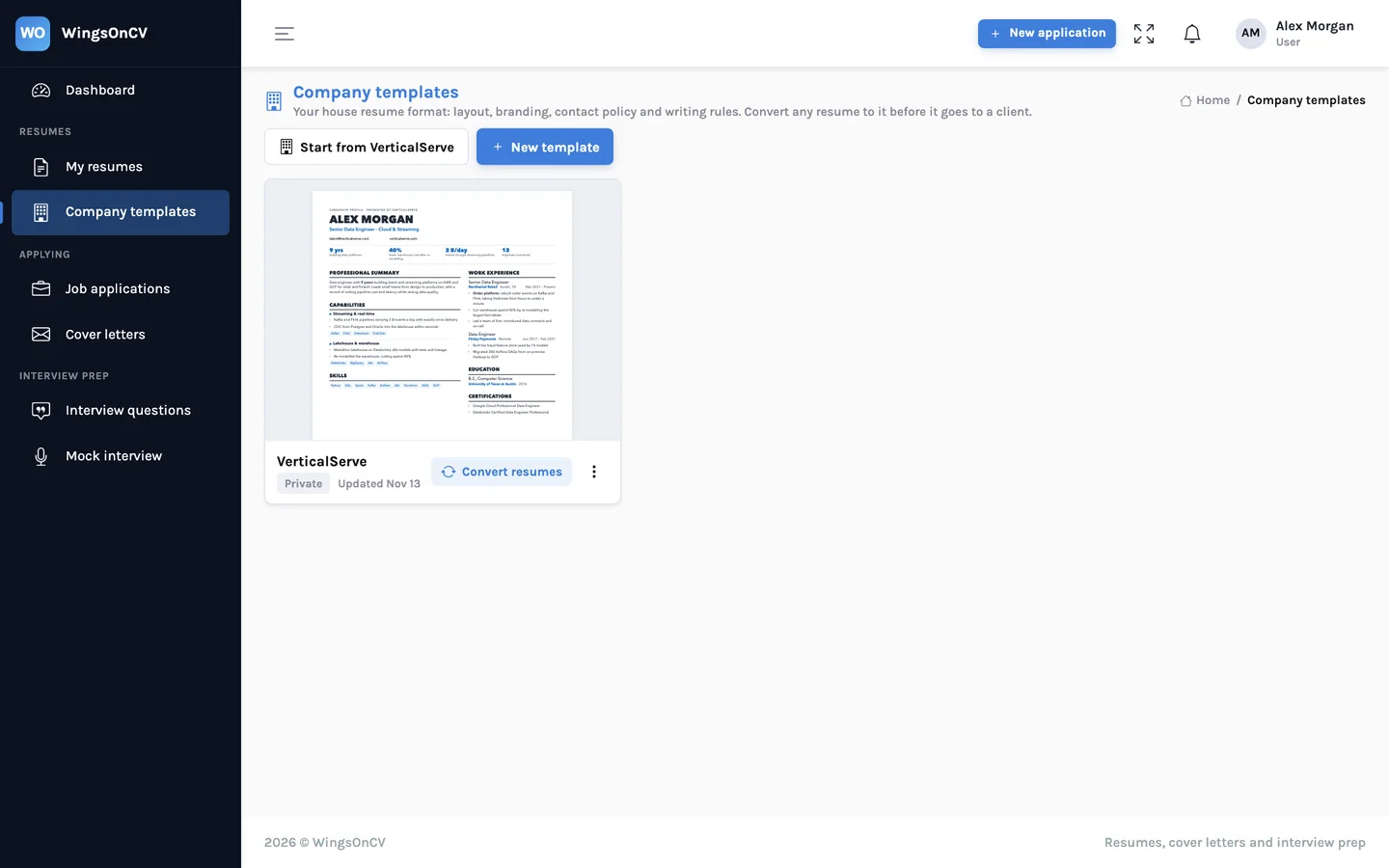
This article describes how company templates in WingsOnCV take that chore away. Everything shown here is in the product today, and is summarised on the For teams page.
The idea: decide the format once
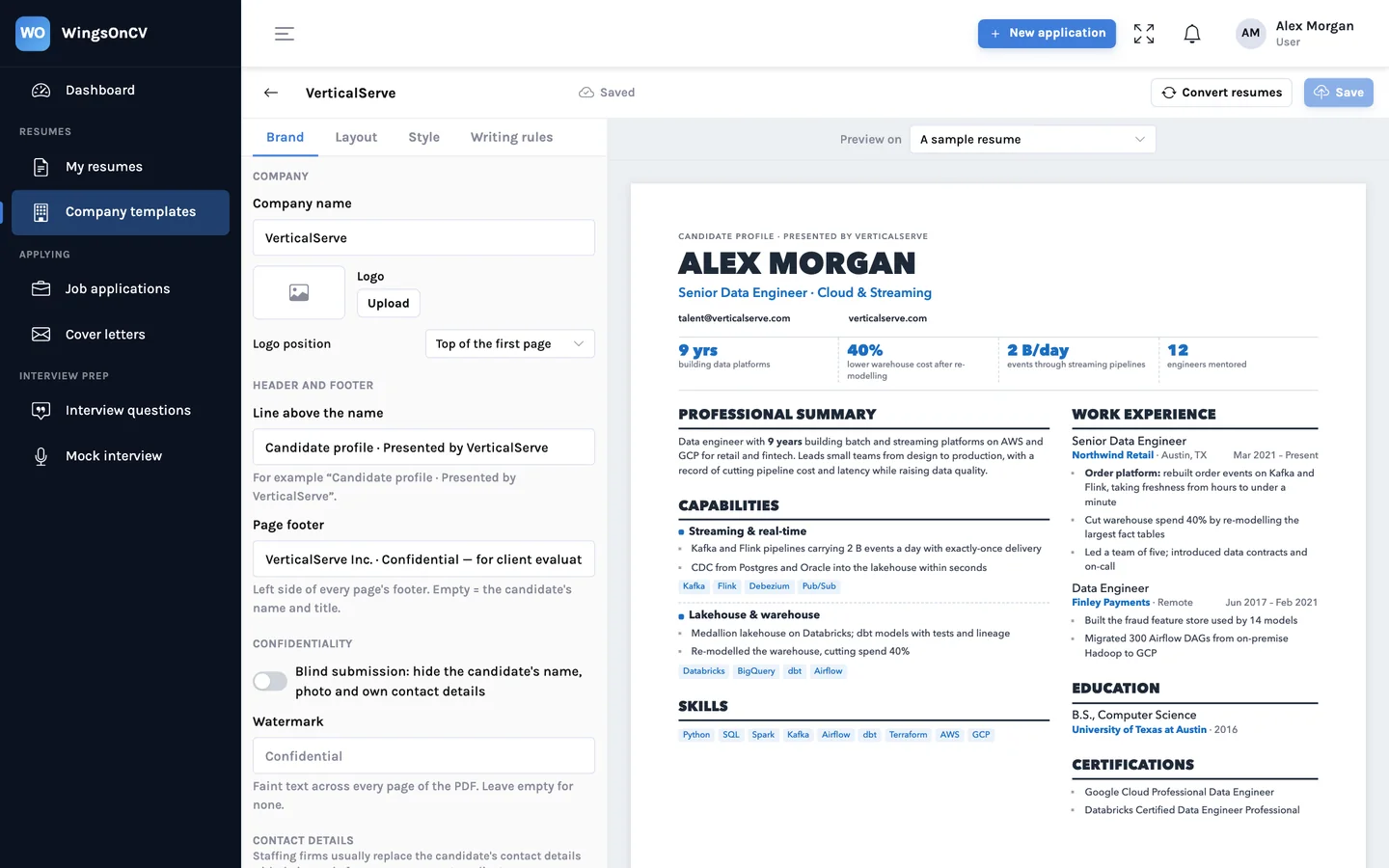
A company template is your house format saved as settings instead of as a document somebody copies. It has two halves. One is the look: layout, fonts, colour, logo. The other is the rules: what appears at the top and bottom of every page, whose contact details are shown, and how the text should be written.
What a company template holds
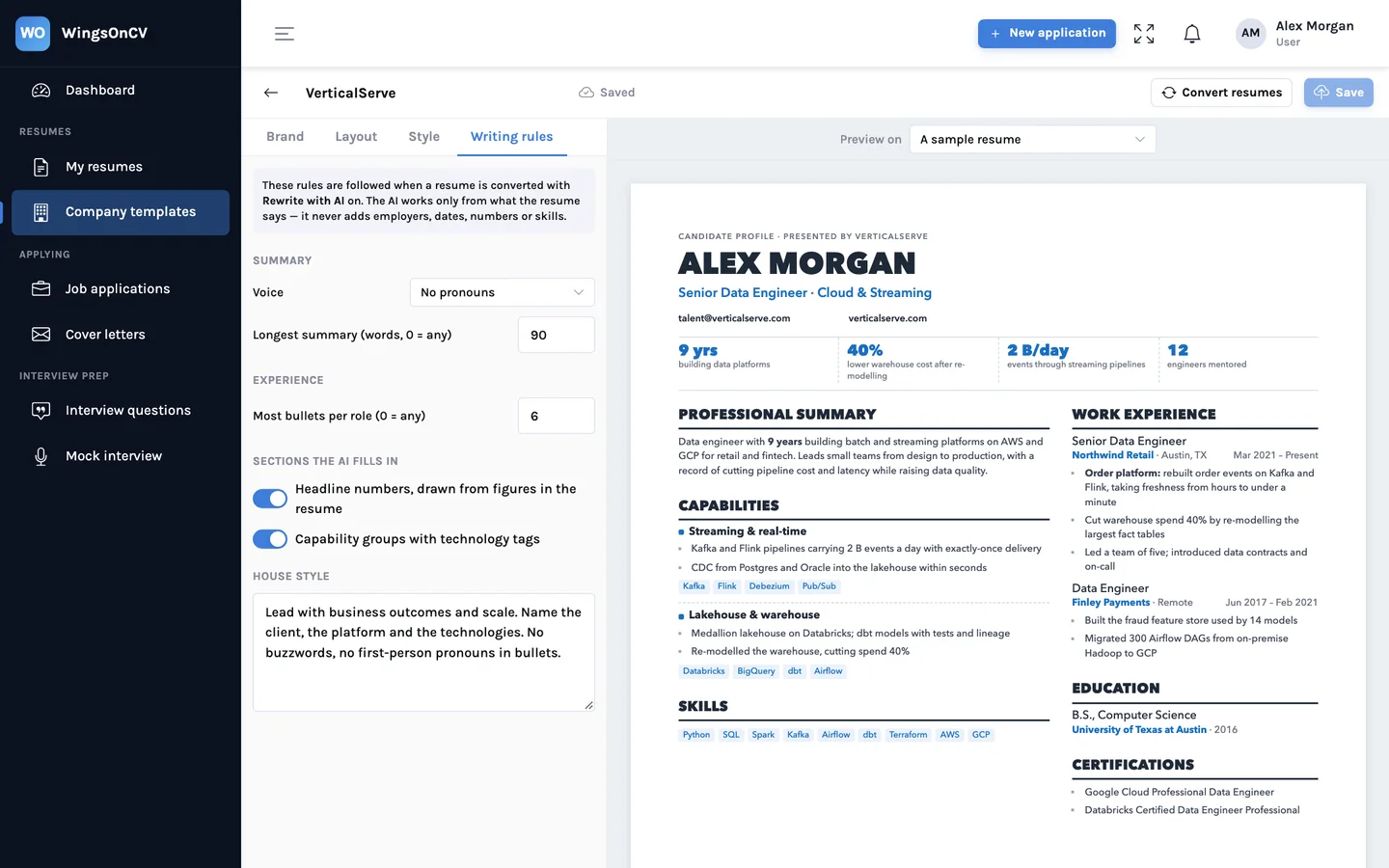
The editor has four tabs: Brand, Layout, Style and Writing rules. Between them they cover what a house format usually specifies.
| Setting | Where | What it controls |
|---|---|---|
| Company name and logo | Brand | The firm's name, and a logo placed at the top of the first page |
| Line above the name | Brand | A short line over the candidate's name, such as "Candidate profile, presented by" and your firm |
| Page footer | Brand | The text at the left of every page's footer, for example a confidentiality line |
| Blind submission | Brand | Hides the candidate's name, photo and own contact details |
| Watermark | Brand | Faint text across every page of the PDF, such as "Confidential" |
| Contact details | Brand | Whether the resume shows the candidate's details, the firm's, or none |
| Sections and their order | Layout | Which sections appear, what they are called, and which column they sit in |
| Fonts, colour, spacing | Style | The typography and accent colour of every converted resume |
| Writing rules | Writing rules | Voice, longest summary, most bullets per role, and a house style note for AI rewriting |
Contact policy
This is the setting firms care about most. A submission normally carries the firm's contact details, so the client replies to the recruiter and not to the candidate. The template can show the candidate's own details, replace them with the firm's, or show none at all. Because it is a property of the template, nobody has to remember to delete a phone number.
Section order and names
If your format leads with a summary, then capabilities, then experience, the template says so, and every converted resume follows it. If you call work history "Professional experience", that is the heading every client sees.
Converting a resume
With a template saved, converting is one step. Open the candidate's resume, choose Company template, pick the template, and convert.
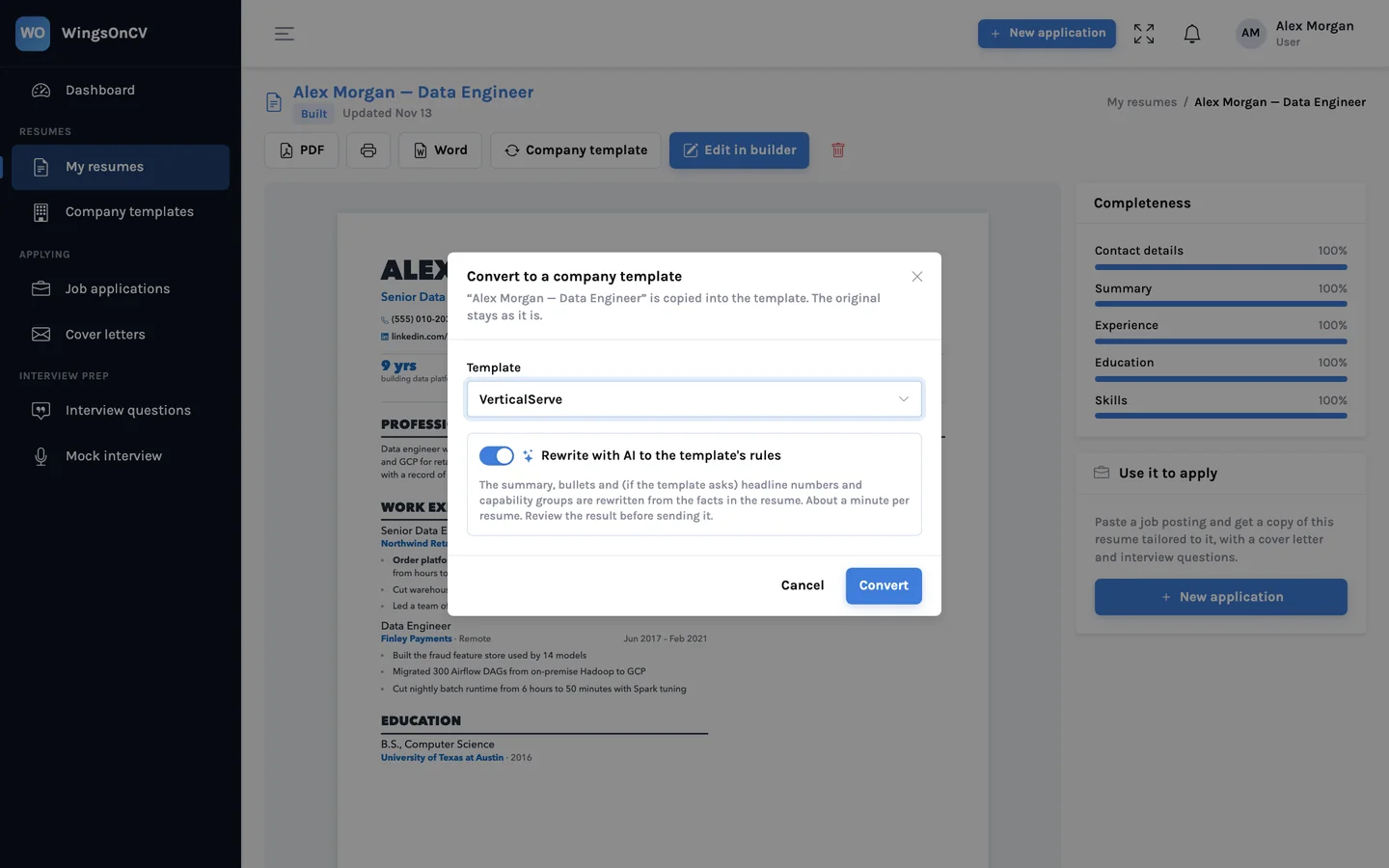
Two things are worth knowing about what happens next.
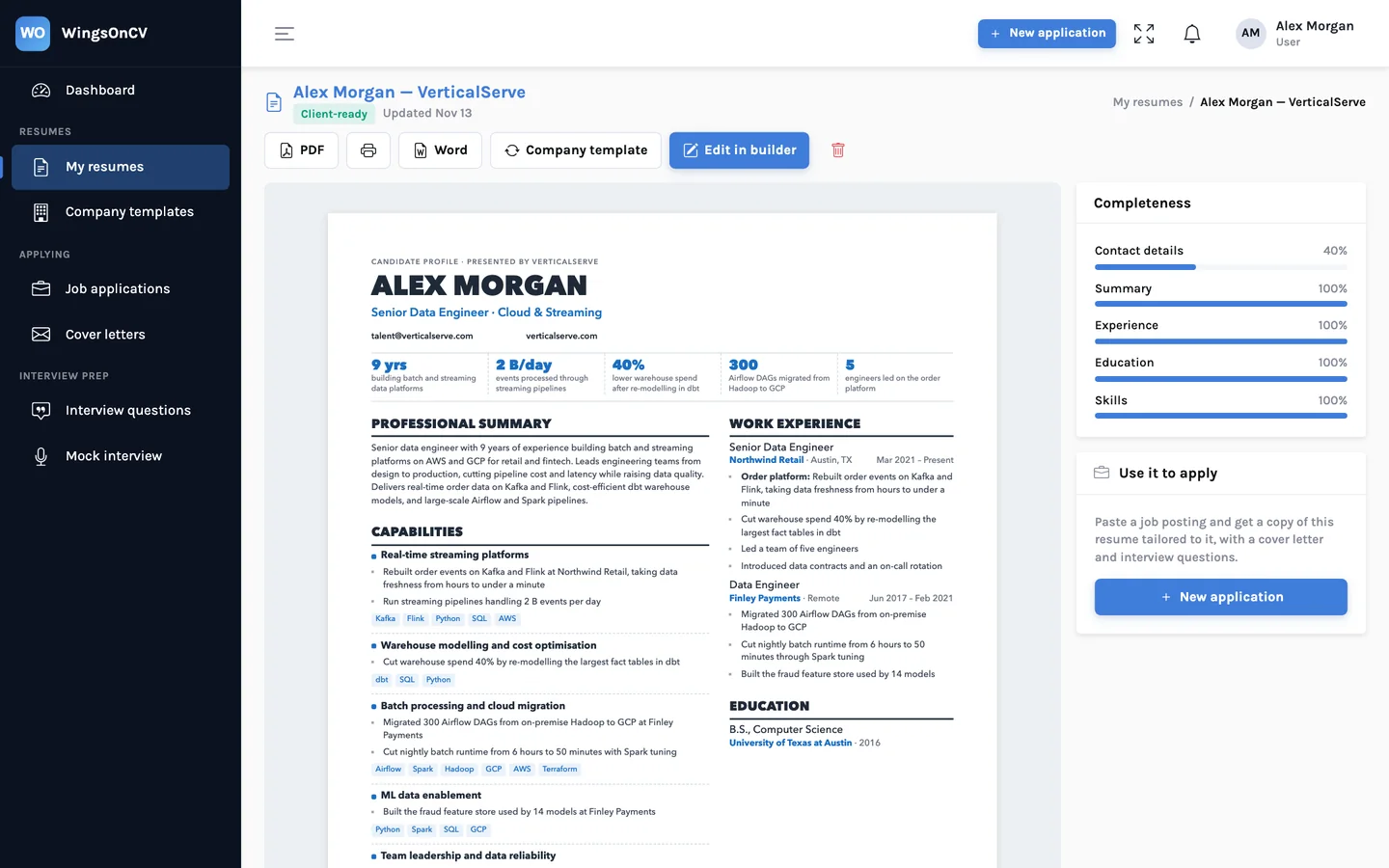
- A copy is made. The client-ready resume is created beside the original. The candidate's own version is untouched, so you can convert the same person into a second format for a different client later.
- You choose how much is rewritten. With the AI switch off, the content is carried over as it is and only the look and the rules change. With it on, the summary and bullets are rewritten to the template's writing rules, and if the template asks for headline numbers or capability groups, those sections are filled in from the resume.
Restructuring is not embellishing
When AI rewriting is on, it works only from what the resume says. It does not add employers, dates, numbers or skills. A headline figure appears only if that figure is already in the candidate's resume. The same rule applies everywhere in the product, and this article explains how it is enforced.
The result is a normal resume. Open it in the builder, fix a line, move a section, and export. Nothing about a converted resume is locked.
Blind submissions and watermarks
Some clients ask to see experience without identity, so that a shortlist is judged on the work. Some firms send profiles blind until the client commits to an interview. Either way, the manual version of this is risky: a name survives in a file name, a LinkedIn link stays in the header.
In a company template, blind submission is a single switch. When it is on:
- the candidate's name is replaced by a neutral label such as "Candidate"
- the photo is removed
- the candidate's phone, email and links are removed
The watermark is separate. Type a word or short phrase and it is printed faintly across every page of the PDF. Firms use it to mark a profile as confidential or as theirs. Leave the field empty for none.
Check the body text too
The switch removes the name and contact details the product knows about. It cannot know that a bullet says "reported to the CEO of" a company only one person could have worked at. A blind submission still needs a person to read it.
Sending a shortlist
A role rarely gets one candidate. On the My resumes page, choose Download, tick the converted resumes for the role, tick PDF, Word or both, and you get one zip with every file named consistently.
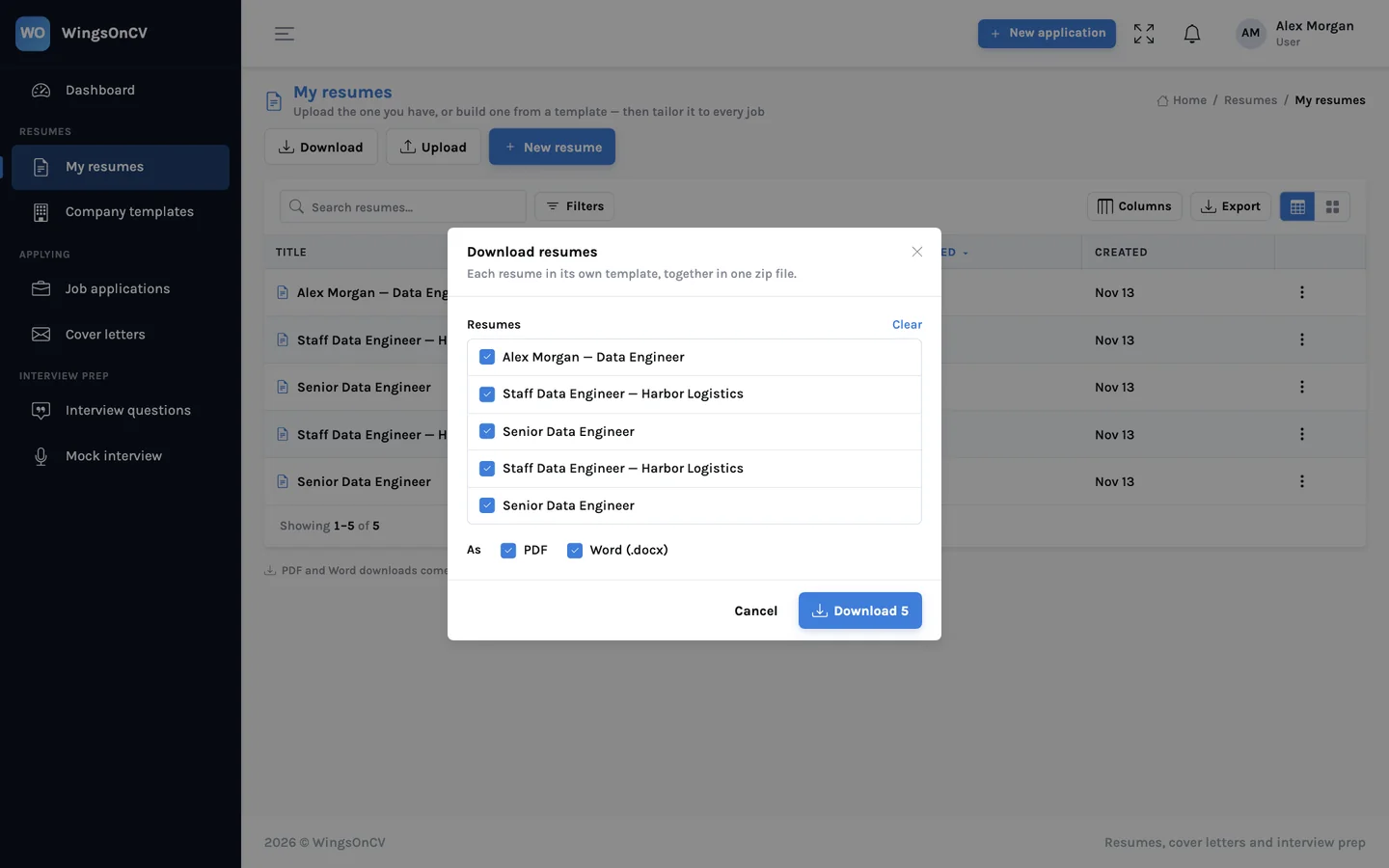
Sending both formats is common in staffing: the PDF is what the hiring manager reads, and the Word file is what the client's own system or coordinator asks for. If the client's system parses resumes, this article on PDF, Word and application systems explains what to send.
Before you send: a short review
Conversion removes the retyping. It does not remove the reading. Whoever sends the profile is vouching for it.
- Compare employers, titles and dates with the candidate's original
- Read the summary: is every claim in it supported lower down?
- For blind profiles, search the text for the candidate's name, employer-specific product names and links
- Confirm the contact details shown are the ones your policy calls for
- Open the PDF and check the page breaks and the footer on every page
The format should be decided once, by the firm. The reading should be done every time, by a person.
Getting started
The quickest way to judge this is with your own material. Create an account, open Company templates, and build one template that matches the document your team uses today. Then upload a resume you have already reformatted by hand and convert it. Compare the two. The differences will tell you which template settings to adjust, and how much of the weekly retyping you can stop doing.
Set up your house format
Build one company template, convert the next resume that comes in, and compare it with the version you would have retyped.
Create your account